Android has come a long way from the “open and risky” reputation it had a decade ago. In 2026, people in India use their phones for UPI payments, net-banking, office email, DigiLocker documents, and shopping. So when you ask do I need antivirus for Android, you’re asking how much protection you already have and where you might still be exposed. Many users can stay safe with Android’s built-in defences and habits, but a dedicated antivirus can still be worth it for frequent banking, lots of downloads, or a shared family device.
This article explains what “viruses” look like on Android now, the security tools you already get, and the extra measures that reduce risk. If you read online news, use WhatsApp groups, or scan QR codes daily, your risk rises. By the end, you’ll know when protections are enough and when an antivirus is worth adding.
Can Android Phones Get Viruses?
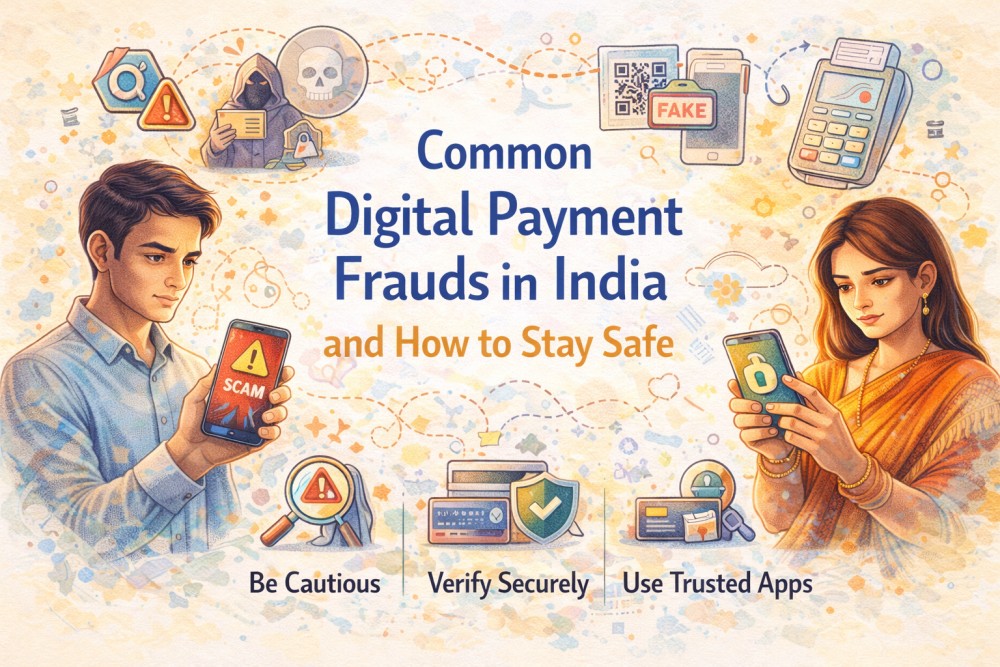
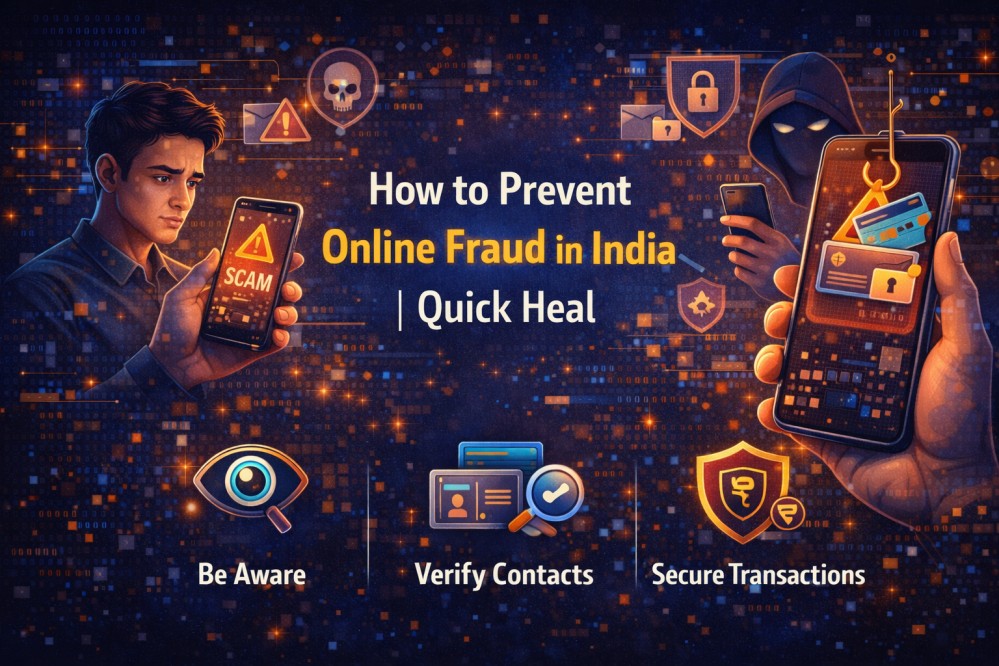
Yes, Android phones can get “viruses” in the everyday sense, though the threats are usually broader than a classic PC virus. On Android, problems commonly show up as malicious apps, aggressive adware, spyware, banking trojans, or links that trick you into handing over OTPs and passwords. Many attacks don’t “infect” the phone at all – they target you with online scams that rely on urgency, fear, or fake authority.
Typical Android threats in 2026 include:
- Fake apps that imitate banks, wallets, delivery services, or government portals.
- Adware that floods you with pop-ups and redirects, sometimes collecting data quietly.
- Spyware that abuses Accessibility settings to read screens, messages, or notifications.
- Banking malware that overlays a fake login screen on top of a real app.
- Social engineering through SMS, WhatsApp, email, and calls, especially OTP and KYC traps.
So, is antivirus necessary for Android? Not for everyone, but the risk is real, and it depends on how you use your phone and where you install apps from.
Android Safety Features
Android’s default protections are stronger than many people realise. If your device is updated and you download apps carefully, you already have several layers of defence. Think of these as the first line of internet security for everyday use.
1. Google Play Protect
Google Play Protect scans apps from the Play Store and, on many phones, also checks apps installed from other sources. It looks for known harmful behaviour, blocks some dangerous installations, and can warn you if an app is later removed from the Play Store. It is not perfect, but it helps catch common malware families and copycat apps that slip through.
2. Software and Security Updates
Updates are boring until they save you. Android’s monthly security patches and vendor updates fix vulnerabilities that attackers actively look for. In India, many people delay updates due to data limits or fear of slowing their phone, but outdated software poses a greater risk than a slightly longer reboot. If your phone no longer receives security patches, that’s a strong sign you may need an extra layer of total security, or you may need to upgrade the device.
3. Safe Browsing
Chrome’s safe browsing features (and similar protections in other browsers) can warn you about dangerous sites and downloads. This matters because many attacks start with a link: a fake courier “missed delivery”, a bogus electricity bill, or a “PAN update” page. Safe browsing can’t stop every bad page, but it reduces the chance you land on known malicious domains used in phishing scams.
4. App Permissions
Android’s permission model has improved, but users still grant access too quickly. Ask a simple question before tapping “Allow”: does a torch app really need contacts, SMS, or a microphone? Review permissions for camera, location, SMS, Accessibility, and Device Admin. The less you grant, the less an app can abuse.
5. Default Security Settings
Android includes sensible defaults that many people never check. Enable a strong screen lock, keep “Install unknown apps” off unless you truly need it, and avoid enabling Developer Options lightly. Also, switch on theft protection features where available. These settings prevent the easiest compromise paths and make it harder for attackers to persist.
Additional Android Security Measures
Beyond the basics, a few features make a noticeable difference in real life, especially for phones used for banking and work. These steps are also helpful if you’re deciding is antivirus software necessary for Android phones in your case.
1. Google Play System updates
Google Play System updates (Project Mainline) deliver security fixes through Google Play, even when full OS updates are slower. Keep auto-updates on. It’s one of the simplest ways to reduce exposure on mid-range devices that don’t receive frequent firmware updates.
2. Encryption
Most modern Android phones use encryption by default, but it only works well with a proper lock screen. Encryption protects your data if the device is lost or stolen, which is common in crowded areas, public transport, and offices. Pair it with a PIN (not “0000”) to reduce damage from physical theft.
3. Find My Device
Find My Device helps locate, lock, or erase a lost phone. Set it up now, not after the phone goes missing. A remote lock can prevent an opportunistic thief from accessing apps that stay logged in. It also reduces panic-driven mistakes that scammers exploit through online scamming methods like fake “phone recovery” services.
4. Biometric authentication
Fingerprint and face unlock are convenient, but use them wisely. Biometrics are best paired with a strong PIN and auto-lock. For payments and sensitive apps, prefer app-level locks where available. If you travel often or share your phone with children, biometrics reduce casual snooping and accidental exposure.
Keep Your Android Device Safe With Quick Heal
For many users, the safest approach is a mix: built-in Android protections plus a reputable antivirus that focuses on real-world threats like fraud, risky links, and malicious installs. Quick Heal is a well-known option in India and can be helpful if you do frequent banking, store business documents, or install apps outside the Play Store. It stands out by pairing malware scanning with web protection and fraud alerts that match common Indian scam patterns.
Here are habits that matter even more than any app:
- Install apps only when you truly need them, and delete what you don’t use.
- Keep auto-updates on for Android, Play System, and your banking apps.
- Treat unexpected links and calls as suspicious, especially those that request an OTP.
- Use a password manager and enable 2-step verification on email and Google accounts.
- If you must sideload an APK, verify the source and check permissions after install.
If you want a single package that combines scanning with fraud protection, choose a solution that includes AntiFraud features and clear alerts, not fear-based pop-ups. The goal is to stay protected without disrupting your daily phone use.