

04
Nov
Nov

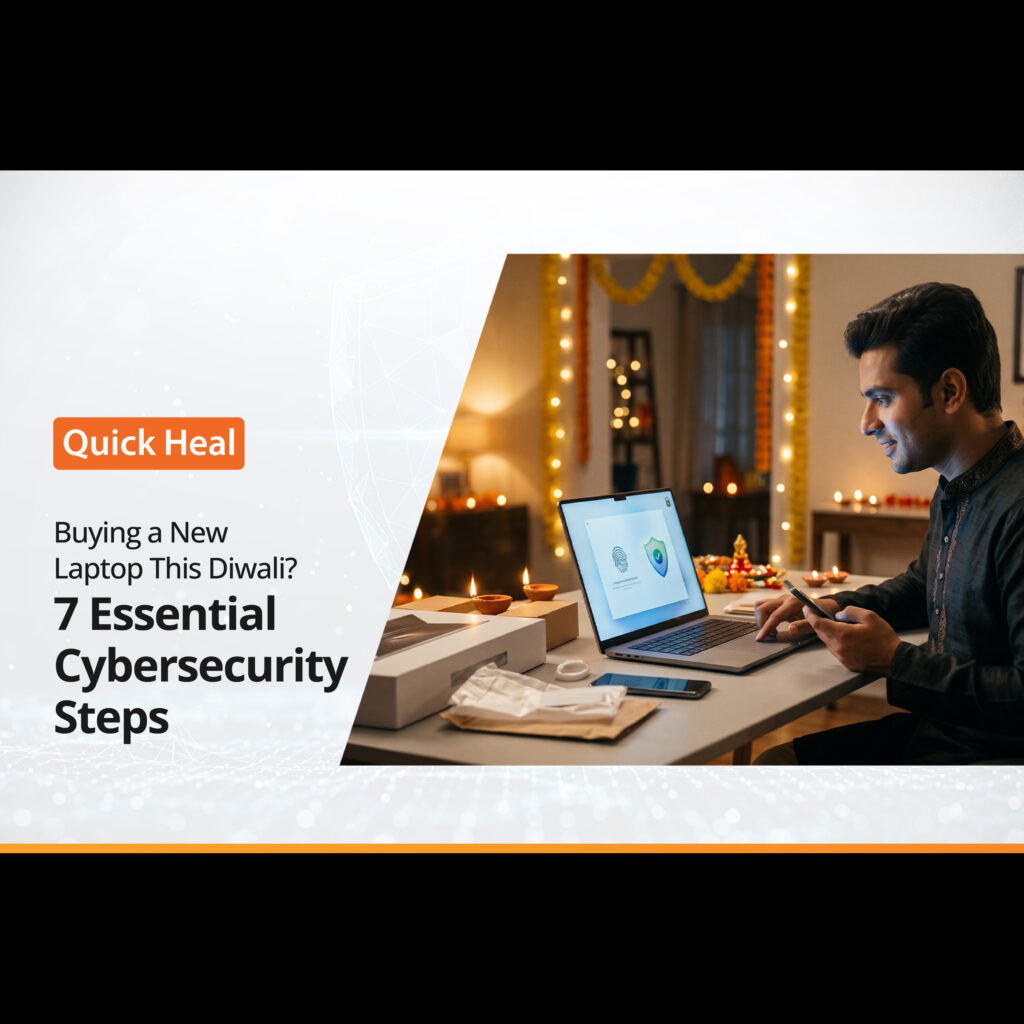
Buying a New Laptop This Diwali? 7 Essential Cybersecurity Steps
- QuickHeal / 7 seconds
- November 4, 2026
- 0

Table of Contents
- Why Your New Laptop Needs Protection From Day One
- New Laptop Security Checklist: 7 Essential Steps
- Step 1: Set Up Your Laptop Securely
- Step 2: Update Windows and Built-In Apps
- Step 3: Install Antivirus for New Laptop Protection
- Step 4: Enable the Firewall
- Step 5: Secure Your Accounts and Passwords
- Step 6: Back Up Your Data
- Step 7: Follow Smart Laptop Security Tips
- How to Choose the Right Antivirus for New Laptop
- Final Diwali Laptop Security Checklist
Diwali is one of the best times to buy a new laptop. Retailers offer festive discounts, exchange deals, and bundled accessories. But a new laptop is not fully secure the moment you unbox it.
Before you install apps, transfer files, or sign in to shopping and banking accounts, set up strong protection. This new laptop security checklist covers the seven steps that matter most.
Why Your New Laptop Needs Protection From Day One
Many users assume a new laptop is safe because it is new. That is not true.
A new laptop may contain outdated software, unpatched vulnerabilities, and default settings that favor convenience over security. The moment you connect to public Wi-Fi, download files, or sign in to accounts, risks increase.
Cybercriminals target new devices because users often delay security setup. They focus on installing games, office apps, and browsers first. Protection comes later—if at all.
Do not make that mistake. Treat antivirus for new laptop setup as part of the unboxing process.
New Laptop Security Checklist: 7 Essential Steps
Use this checklist before you start using your laptop for work, studies, shopping, or entertainment:
- Set up your laptop securely
- Update Windows and built-in apps
- Install antivirus for new laptop protection
- Enable the firewall
- Secure your accounts and passwords
- Back up your data
- Follow smart laptop security tips
Complete these steps in order. Each one reduces your exposure to malware, phishing, data theft, and account takeover.
Step 1: Set Up Your Laptop Securely
Start with the basics.
Create a strong password or PIN for your laptop login. Avoid using your name, birthdate, phone number, or common words. If your laptop supports Windows Hello, use fingerprint or facial recognition for faster and safer access.
Review privacy settings during setup. Turn off unnecessary location access, advertising ID, and app permissions. Do not connect to unknown Wi-Fi networks while completing setup.
If you are setting up a Windows laptop, create a Microsoft account with a strong, unique password. This account often controls your device settings, backups, and security options.
Step 2: Update Windows and Built-In Apps
New laptops often ship with older software. Even a laptop purchased today may need critical updates.
Go to Settings > Windows Update and install all pending updates. Restart the laptop when prompted. Repeat until no updates remain.
Update built-in apps too. This includes Microsoft Edge, Microsoft Store apps, drivers, and firmware. Updates patch security flaws that attackers can exploit.
If you use Windows 11, keep automatic updates enabled. Windows 11 antivirus protection works best when the operating system and security components are current.
Step 3: Install Antivirus for New Laptop Protection
This is the most important step in your new laptop security checklist.
Windows includes built-in protection, but it may not cover every threat you encounter. A dedicated antivirus for new laptop setup adds stronger malware detection, real-time protection, web security, and ransomware defense.
Install laptop antivirus before you download files, install third-party apps, or sign in to sensitive accounts. Run a full system scan after installation. This helps detect threats that may already exist on the device.
A good antivirus for new laptop should include:
- Real-time malware protection
- Ransomware and spyware defense
- Safe web browsing protection
- Phishing and malicious link detection
- Automatic virus definition updates
- Full system and scheduled scans
Avoid downloading antivirus software from random websites. Always install it from the official website or a trusted app store.
Step 4: Enable the Firewall
A firewall monitors incoming and outgoing network traffic. It helps block unauthorized connections while you browse, download, or use public Wi-Fi.
On Windows, go to Settings > Privacy & security > Windows Security > Firewall & network protection. Ensure the firewall is enabled for Domain, Private, and Public networks.
Do not disable the firewall to make an app work. If an app needs special access, review the request carefully first.
A firewall and antivirus for new laptop security work together. One protects your device from malicious software. The other helps control network connections.
Step 5: Secure Your Accounts and Passwords
Your laptop is only as secure as the accounts connected to it.
Use unique passwords for every account. Do not reuse your email password for shopping, banking, cloud storage, or social media. A password manager can create and store strong passwords for you.
Enable two-factor authentication (2FA) for important accounts. Start with:
- Microsoft account
- Cloud storage
- Banking and payment apps
- Shopping accounts
2FA adds a second layer of protection. Even if someone steals your password, they cannot easily access your account without the second verification step.
Be cautious with festive-season emails and messages. Fake Diwali offers, delivery updates, and prize notifications are common phishing tactics. Do not click links from unknown senders.
Step 6: Back Up Your Data
Ransomware, hardware failure, theft, and accidental deletion can wipe your files. A backup ensures you do not lose important documents, photos, projects, or work files.
Use the 3-2-1 backup method:
- Keep 3 copies of important data
- Store them on 2 different types of media
- Keep 1 copy offsite or in the cloud
Enable OneDrive, Google Drive, or another trusted cloud backup service. Also keep an external hard drive for important files.
Run your first backup soon after setup. Then schedule regular backups. A backup is not optional—it is part of responsible laptop security.
Step 7: Follow Smart Laptop Security Tips
Strong software protection is essential, but safe habits matter too.
Follow these laptop security tips:
- Lock your laptop whenever you step away
- Avoid saving passwords in browsers on shared devices
- Do not use public Wi-Fi for banking or shopping
- Use a VPN when connecting to public networks
- Download apps only from official sources
- Avoid pirated software and cracked files
- Do not plug in unknown USB drives
- Review app permissions regularly
- Keep your operating system and antivirus updated
These habits reduce the risk of malware, phishing, and data theft.
How to Choose the Right Antivirus for New Laptop
Not every security product offers the same protection. When choosing antivirus for new laptop use, look beyond price.
Choose a product that offers:
- Real-time protection against viruses, spyware, and ransomware
- Web protection against phishing and malicious websites
- Automatic updates for new threats
- Lightweight performance that does not slow your laptop
- Easy-to-use dashboard and scan options
- Support for Windows 11 and older Windows versions
- Additional tools such as secure browsing, data protection, or parental controls
For most users, the best antivirus for new laptop protection is one that runs quietly in the background, updates automatically, and blocks threats before they cause damage.
If you use your laptop for work, studies, online shopping, or banking, invest in a reliable laptop antivirus rather than relying only on default protection.
Final Diwali Laptop Security Checklist
Before you start using your new laptop, confirm these items:
- Strong laptop password or PIN enabled
- Windows and drivers updated
- Antivirus for new laptop installed and scanned
- Firewall enabled
- Two-factor authentication enabled for key accounts
- Cloud and external backups configured
- Automatic updates turned on
- Safe browsing and download habits followed
A new laptop is an investment. Protect it from day one with the right security setup, updated software, and reliable antivirus for new laptop protection.