


28
May
May

How to Recognise Fake Antivirus Software and Protect Yourself
- Quick Heal / 1 year
- May 28, 2025
- 0

Fake antivirus software is a scam that pretends to protect your device while creating new security risks. You’re checking a cricket score, and a pop-up suddenly claims your phone has “47 infections” and urges an immediate scan. That’s a classic fake antivirus tactic: polished visuals, official-sounding language, and pressure to install. As our daily lives move online from UPI payments to streaming and work, these scams are becoming harder to ignore.
This guide explains how to identify fake antivirus software, the tricks it uses, and the practical steps you can take to stay protected. You can share it with anyone new to smartphones or unsure about security prompts.
What Is Fake Antivirus Software?
Fake antivirus software is a malicious or deceptive program that pretends to protect your device from viruses, malware or other threats. Instead of securing your system, it may display fabricated infection warnings, collect personal information, install malware, push unwanted advertisements or trick you into paying for unnecessary services.
Some fake antivirus programs imitate the appearance of well-known security products. They may use familiar colours, logos, security terminology and realistic-looking scan results to appear legitimate. Others work as browser-based scams, showing a fake “virus detected” alert and pushing you to download an application.
The danger is that these scams exploit a user’s natural reaction to a security warning: fear followed by immediate action.
Example: Imagine visiting a free streaming website and seeing a pop-up saying, “Your device is infected. Your antivirus has expired. Click here to remove 12 threats.” The message may look like a genuine system warning, but clicking it could download a malicious program or take you to a fake payment page.
Unlike genuine security software, fake antivirus software does not provide trustworthy threat detection or protection. It may actually create the very security problems it claims to solve.
What Makes Antivirus Software Fake?
Look beyond the appearance of an antivirus program. Several warning signs can help you distinguish genuine security software from a scam:
No Verifiable Company Information
A suspicious security product may provide no clear company address, privacy policy, customer support details or publisher information. Legitimate security vendors generally provide identifiable information about their products and services.
Alarming Claims Without Evidence
Fake antivirus software often claims that your device has dozens of infections within seconds. Be cautious when a “scan” produces dramatic results without showing how the threats were detected or verified.
Unusual Permission Requests
A basic security application may not need access to your contacts, SMS, microphone or other unrelated features. Excessive permissions can indicate that the application is collecting information beyond what it needs.
Untrusted Download Sources
Avoid security software offered through random pop-ups, shortened links, torrent sites, pirated software pages or unsolicited WhatsApp messages. Genuine products should be downloaded from an official website or trusted app store.
Pressure to Pay Immediately
Scammers often show fake infection counts and then demand instant payment to “clean” your device. Urgent payment requests are a common sign of fake antivirus software.
Suspicious Website or App Behaviour
Misspelled domains, broken pages, excessive advertisements, browser redirects or repeated warnings after you close them can all indicate a scam rather than genuine antivirus protection.
Unexplained Device Changes
If a supposedly protective app changes your browser settings, slows down the device, installs additional programs or disables legitimate security tools, treat it as suspicious.
Why Fake Antivirus Software Is a Growing Threat
Fake antivirus scams continue to evolve because they combine technical deception with social engineering. Instead of asking users to download obviously suspicious software, scammers create situations that make the download appear necessary.
More People Depend on Mobile Devices
Phones and tablets now handle banking, payments, shopping, work and personal communication. This gives criminals more opportunities to disguise fake security alerts as urgent mobile protection.
Security Warnings Create Immediate Fear
Messages claiming that your device is infected or your data is at risk encourage users to act before thinking. Fraudsters use this fear to push downloads, subscriptions or payments.
Free Downloads Create More Opportunities
Pirated software, free utilities and unofficial downloads are common channels for distributing unwanted or malicious programs. A security tool offered as a “free fix” can become the infection itself.
Scams Can Lead to Financial and Data Loss
A fake antivirus program may not stop at a payment request. It can expose passwords, banking information or personal data, install other malware or redirect users to fraudulent websites.
Fake Security Products Can Disable Real Protection
Some rogue programs attempt to interfere with legitimate security software or prevent users from accessing trusted security websites. This can make the victim more vulnerable to additional attacks.
How Fake Antivirus Software Tricks Users
Fake antivirus tools rely on social engineering more than code. They mimic system alerts, throw up full-screen warnings, and run fake “quick scans” that always find dozens of threats. Once installed, they flood you with alerts, request excessive permissions, and direct you to insecure payment pages for “full protection”.
1. Fake Security Alerts and Pop-Ups
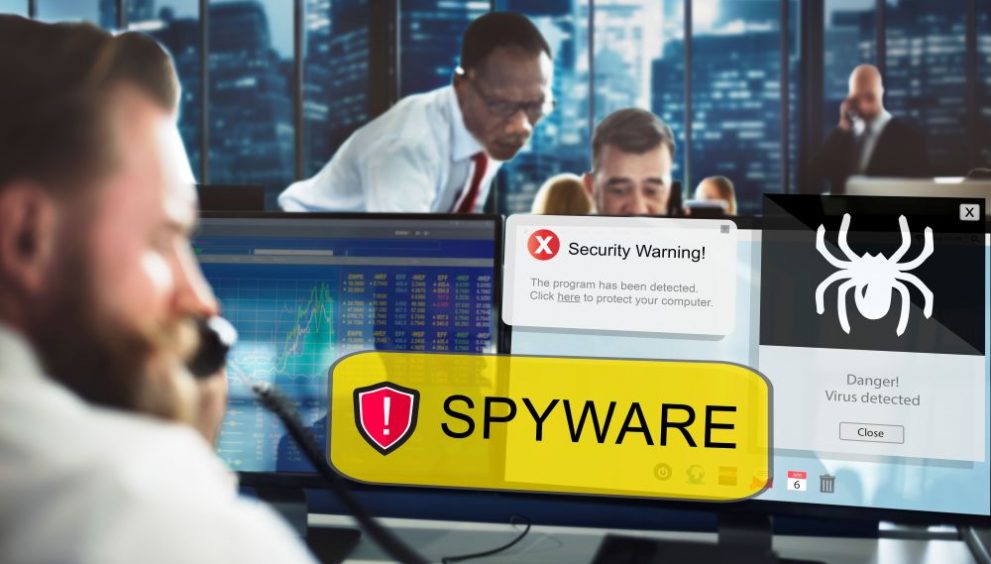
Some systems play alert sounds. The message will push exactly one “solution,” often a download from an unfamiliar site. Real operating systems rarely push such single-solution prompts.
2. Phony Downloads and Installation Tricks
Attackers bundle the fake tool with free drivers or converters. During installation, a box is pre-ticked to add a web shield. You skip past it, and the unwanted app lands on your device.
3. Fake Payment Requests for “Full Protection”
The free scan claims to detect a long list of problems. To “fix everything,” you must pay today. The checkout page may not use secure payment gateways. Details entered there can appear on the dark web within days.
4. Recognising the Warning Signs
Watch for sudden, full-screen alerts claiming dozens of “critical” threats, flashing timers, or vibration that push instant scans. Be cautious if a message forces one to download, asks for payment first, or leads to odd, misspelt domains.
5. Unexpected System Alerts
Pointers:
- Windows-style or Android-style windows that appear inside your browser tab.
- Alerts that keep reopening if you try to close them.
- Warnings that mention “police notification” or “court action.” That drama is a tell.
6. Slow Device Performance or Crashes
After installing a “security” app, your phone heats up, battery drains fast, or the browser homepage changes on its own. That is a strong sign of fake antivirus behaviour. Uninstall the suspect app and run a scan with a trusted solution.
What is Rogue Security Software?
Rogue security software is another term for a type of fake antivirus software that pretends to detect and remove threats but instead misleads or harms the user.
For example, imagine downloading a program called “PC Secure Guard” after seeing a pop-up warning about a critical virus. The application performs a fake scan, reports multiple infections and asks for payment to remove them. After installation, it may also block legitimate antivirus software or prevent access to security websites.
This is how rogue security software works: it imitates the behaviour of genuine security tools while creating additional risks. The fake scan results, urgent warnings and payment demands are designed to convince users that the program is protecting them when it is actually exploiting them.
How to Verify Genuine Antivirus Software
Follow this short routine before you trust any total security antivirus product:
- Go to the official website: Type the address yourself; don’t click links in messages.
- Use official app stores: On Android, check Google Play downloads, recent reviews, and update history.
- Check the publisher’s name: It should match the brand website.
- Verify the installer: Windows → Right-click file → Properties → Digital Signatures.
- Read an independent review: Use reputable tech sites or forums; beware “Best Ever” listicles pushing unknown brands.
- Confirm support: Look for phone/chat support, clear FAQs, and refund policies.
If you prefer a local brand with an established presence and offline support in many cities, consider exploring plans for Quick Heal.
Best Practices to Stay Protected Online
Follow these practices to stay protected online:
- Update everything: Keep your OS, browser, and internet security suite current.
- Use one trusted suite: Don’t run two; pick one verified product.
- Be careful with downloads: Avoid pirated content and “free” utilities from unknown sites, many of which carry fake antivirus software.
- Strengthen your logins: Use a password manager, unique passwords, and 2FA for email and banking.
- Turn on browser protections: Enable safe browsing and a reputable ad blocker.
- Back up regularly: Cloud or external drive backups turn crises into quick clean-ups.
- Teach the household: Show parents and children fake alert examples; ask them to pause and call before clicking.
- Know your exits: Learn to force-quit apps, clear cache, and use safe mode.
frequently asked questions
- How can I protect myself against fake antiviruses?
Download antivirus software only from official sites or app stores. Check the publisher name and support channels. Keep your system updated, avoid pirated software, and back up your data. If an alert appears out of nowhere, close the tab and run a scan using a trusted product
- What does a fake antivirus message look like?
It shouts urgency, large red text, countdown timers, and claims like "Your phone has 38 threats." It may copy system colours and pretend to be your device itself. The alert pushes one download or a payment link. Spelling mistakes and exaggerated numbers are common tells of a fake antivirus message.
- How to remove fake antivirus pop-up?
Do not click inside the pop-up. Close the entire tab or force-quit the browser: clear cache and site data. Reopen and run a scan using your genuine security app. On Android, review recently installed apps and uninstall anything suspicious. If the pop-up reappears, reset browser settings to default.
- How to detect fake antivirus software?
A fundamental tool will not force payment to "unlock cleaning," will not demand unrelated permissions, and will update through official channels. If the app pushes too many warnings or blocks other security tools, treat it as fake antivirus software and remove it.