


05
Oct
Oct

How to Scan Laptop for Viruses Online and Remove Malware
- QuickHeal / 1 week
- October 5, 2026
- 0

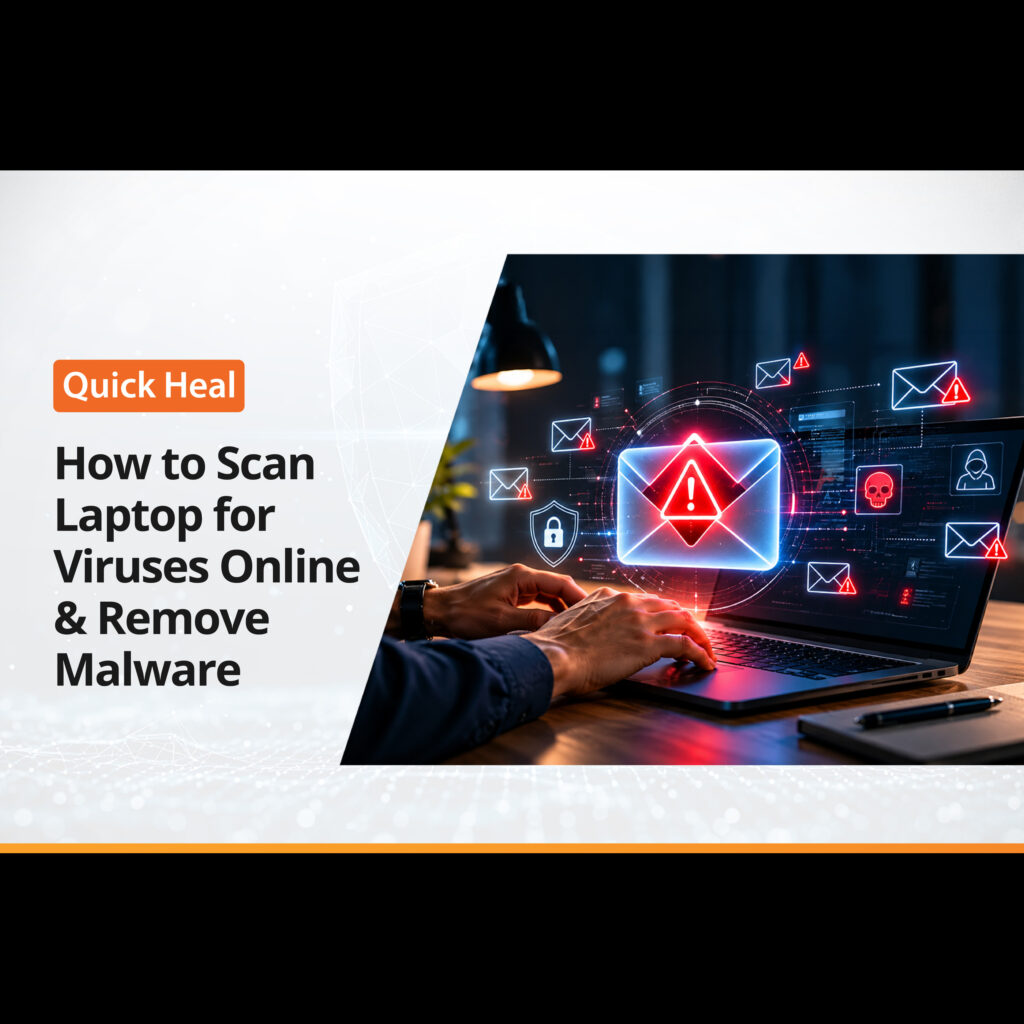
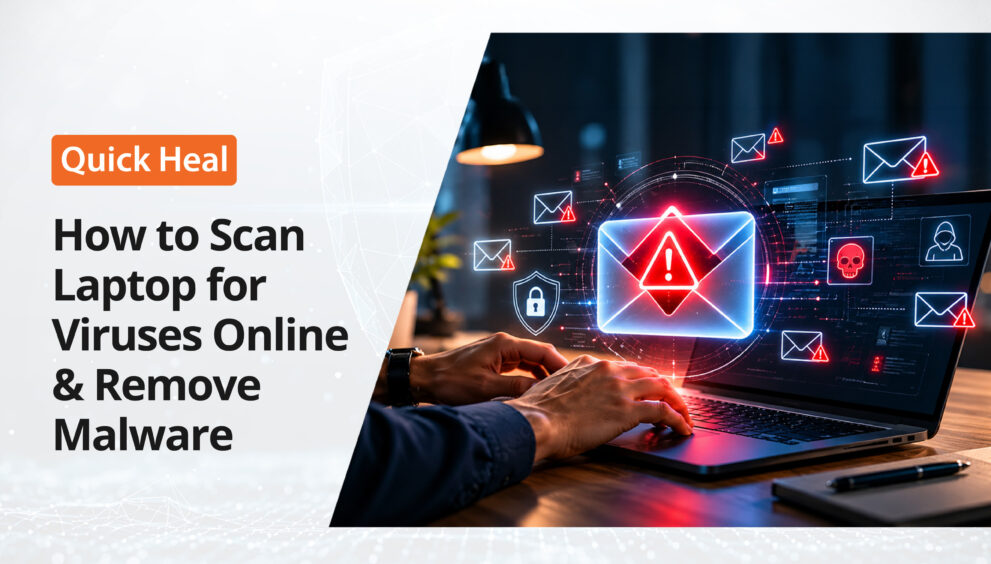
If your laptop is suddenly slowing down, showing unexpected pop-ups, crashing frequently, or behaving differently than usual, malware could be one possible reason. In such situations, many users search for ways to scan a laptop for viruses online for free.
Online file and URL scanners can be useful for checking suspicious downloads, links, or attachments. However, they are different from a full antivirus scan because they generally do not inspect your entire laptop or provide continuous protection.
This guide explains how online virus scanning works, its limitations, how to check your laptop for malware, and what to do if a threat is detected.
Can You Scan a Laptop for Viruses Online?
Yes, but there is an important distinction between an online virus scan and a full system scan.
Online services can allow you to submit a suspicious file or URL for analysis. For example, services such as VirusTotal can check submitted files and URLs against multiple security engines. This can be useful when you want to determine whether a particular file or link may be malicious.
However, uploading a file for analysis is not the same as scanning your entire laptop.
A browser-based service generally cannot perform the same level of system inspection as security software installed on your device. It may not be able to check running processes, system files, memory, startup items, or other areas of your computer that installed security software can examine.
What Different Types of Scanners Can Do
Scanner Type | What It Can Do | Main Limitation |
Online file/URL scanner | Analyze a specific file or URL | Does not provide a complete system scan |
On-demand antivirus scanner | Scan selected files, folders, or the entire device | Usually needs to be started manually |
Antivirus software | Scan the system and provide ongoing protection | Requires installation and regular updates |
Comprehensive security software | Combines malware protection with additional security features | Features vary by product and plan |
So, if you are concerned that your laptop itself may already be infected, an installed security solution capable of performing a full system scan is more appropriate than relying only on a browser-based scanner.
Free Online Scanners vs. Antivirus Software
Free online scanners can be useful for a specific purpose, but they should not be confused with complete antivirus protection.
When an Online Scanner Can Help
An online scanner can be useful when:
- You receive a suspicious file and want to check it before opening it.
- You want to investigate an unfamiliar URL.
- You need a second opinion about a particular file.
- You do not want to install additional software just to check one file.
For example, if someone sends you an unfamiliar document, you can use a reputable file-analysis service to check it before opening it.
However, avoid uploading confidential documents, personal information, or sensitive business files to third-party scanning services unless you understand how the service handles submitted files.
Why a Full System Scan Is Different
If you suspect that malware has already reached your laptop, you need to examine the device itself.
Installed antivirus software can scan areas such as:
- Files and folders
- Running processes
- System components
- Startup items
- Other areas supported by the security software
Depending on the product, security software can also monitor activity continuously and block or quarantine detected threats.
This makes a full antivirus scan useful when your concern is not just a single suspicious file, but the overall security of your laptop.
Warning Signs of Malware on Your Laptop
Malware does not always produce obvious symptoms. Some infections may remain unnoticed, while others can cause noticeable changes in system behavior.
Some warning signs include:
1. Unexpected Pop-Ups
Frequent pop-ups, especially those appearing outside your normal browsing activity, can be a reason to investigate your system.
2. Unusual System Slowdowns
A sudden and unexplained drop in performance may have several causes, including unwanted software or malware. Check your system before assuming that malware is responsible.
3. Frequent Crashes or Freezes
Repeated application crashes, freezes, or unexpected restarts can indicate a software or hardware problem. Malware is one possible cause and should be considered if other symptoms appear as well.
4. Unknown Applications or Processes
If you notice unfamiliar applications or processes running on your laptop, investigate them before ending or deleting anything.
5. Browser Settings Changing Without Your Permission
An unfamiliar homepage, search engine, extension, or repeated redirects can indicate unwanted software or a potentially malicious browser extension.
6. Security Settings Being Disabled
If your security software or other important security settings are unexpectedly disabled, investigate the cause immediately.
Remember: These signs do not automatically mean your laptop has a virus. Similar symptoms can result from outdated software, hardware issues, unwanted applications, or configuration problems. A security scan can help determine whether malware is involved.
How to Scan and Remove Malware from Your Laptop
If you suspect that your laptop may be infected, follow these steps.
Step 1: Disconnect From the Internet if You Suspect an Active Infection
If you notice suspicious activity or believe malware may be actively communicating with an external server, temporarily disconnect from the internet.
This can help limit network communication while you investigate the issue.
Step 2: Use Reputable Security Software
Use a trusted antivirus or security solution from its official source.
If you use Quick Heal, download the appropriate product from the official Quick Heal website rather than from third-party download sites.
Step 3: Update the Security Software
Before starting a scan, check for available product and threat-definition updates.
Security software needs current threat information to identify newly discovered threats more effectively.
Step 4: Run a Full System Scan
Start a full or deep scan, depending on the options available in your security software.
A full scan can examine a much broader portion of your laptop than an online file scanner and can help identify malicious or suspicious files stored on the device.
The scan may take some time depending on the amount of data and the specifications of your laptop.
Step 5: Review the Detection Results
Once the scan is complete, review the threats identified by your security software.
Avoid manually deleting system files simply because they appear unfamiliar. Instead, follow the recommended action provided by the security software.
Step 6: Quarantine or Remove Detected Threats
If malware is detected, use the software’s recommended quarantine or removal option.
Quarantining isolates a suspicious file so that it cannot normally interact with the rest of the system while you decide what action to take.
Step 7: Restart Your Laptop if Required
Some threats or security changes may require a system restart to complete the removal process.
After restarting, consider running another scan if your security software recommends it or if suspicious behavior continues.
How to Keep Your Laptop Protected
Removing malware is only one part of keeping your laptop secure. Good security practices can reduce the chances of future infections.
Keep Your Antivirus Updated
Make sure your security software receives regular updates so that it can respond to newly identified threats.
Keep Windows and Other Software Updated
Install security updates for your operating system, browser, and frequently used applications. Attackers often exploit vulnerabilities in outdated software.
Be Careful With Email Attachments
Avoid opening unexpected attachments, particularly when the sender or context seems suspicious.
Check Links Before Clicking
Be cautious with links received through email, messaging apps, social media, or other online channels. If a message creates urgency or asks you to provide sensitive information, verify it independently.
Download Software From Trusted Sources
Download applications from official websites or trusted app stores whenever possible. Avoid pirated software and unknown download sites, which can increase your exposure to unwanted or malicious software.
Use Strong Passwords and Multi-Factor Authentication
Use unique passwords for important accounts and enable multi-factor authentication wherever available. This adds another layer of protection if a password is compromised.
Back Up Important Data
Maintain regular backups of important documents, photos, and other files. Backups can be particularly valuable if your device is affected by ransomware or another destructive threat.
Conclusion
If you want to scan your laptop for viruses online for free, online file and URL scanners can be useful for checking specific items. However, they are not a replacement for a full system scan or ongoing security protection.
If you suspect that malware is already present on your laptop, use reputable antivirus software to scan the device, review detected threats, and quarantine or remove them as recommended.
Keeping your operating system and applications updated, using trusted security software, being careful with links and attachments, and maintaining regular backups can further improve your laptop’s security.
For users looking for additional protection, solutions such as Quick Heal provide antivirus and broader security features depending on the product and plan selected.