
05
Oct
Oct

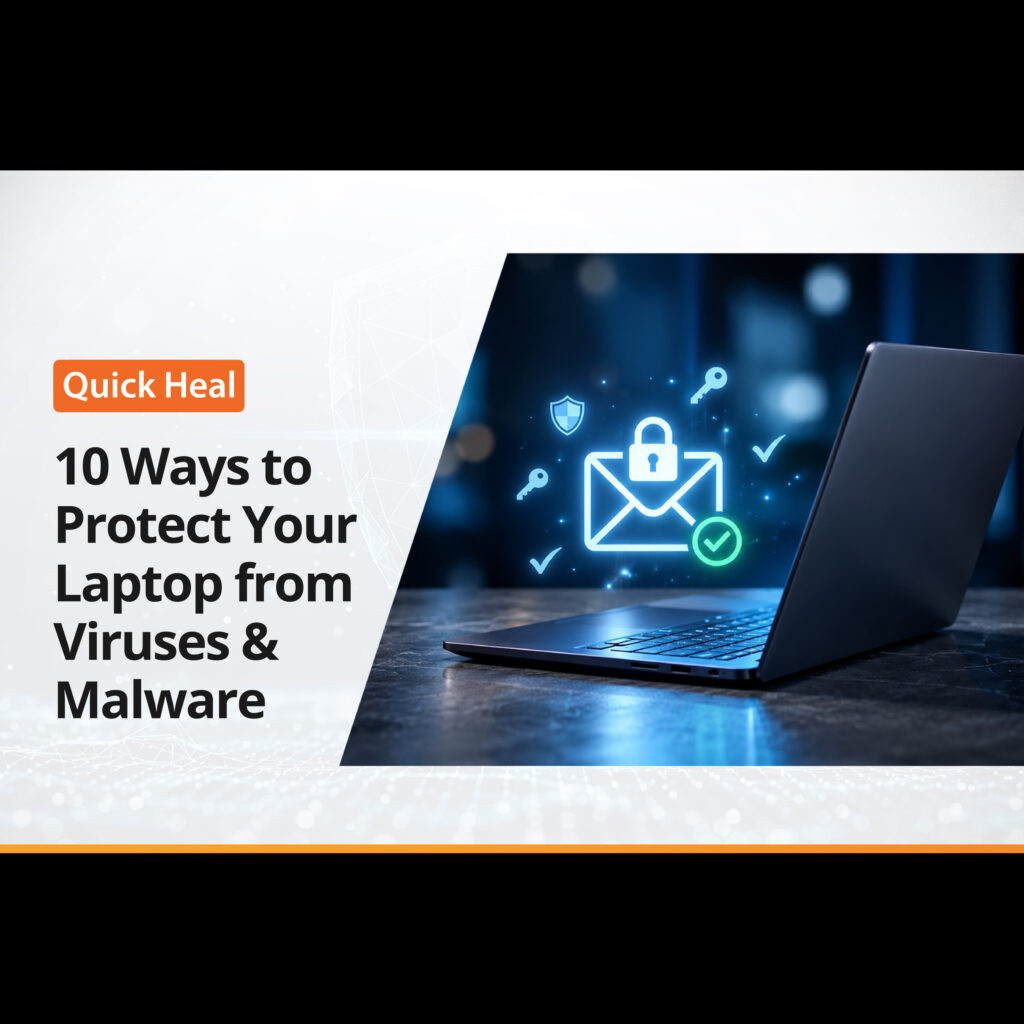
10 Ways to Protect Your Laptop from Viruses and Malware
- QuickHeal / 10 minutes
- October 5, 2026
- 0

Table of Contents
- How to Protect Your Laptop from Viruses and Malware
- How Do These Steps Work Together?
- What Are the Most Important Laptop Virus Protection Habits?
- Conclusion
- FAQs
A laptop can hold your work documents, photos, passwords, financial information and years of personal files. That makes it an attractive target for malware, ransomware, spyware and other forms of cybercrime. Effective laptop virus protection does not depend on one complicated security measure. It comes from combining reliable security software with sensible everyday habits.
Whether you use a laptop for work, studies, banking, shopping or entertainment, these practical antivirus tips can help strengthen your security.
How to Protect Your Laptop from Viruses and Malware?
Good laptop security starts with a few simple habits that work together. Installing antivirus software, keeping your system updated and being careful about what you download can reduce common risks. Strong passwords, firewalls and regular backups add further layers of protection.
Here are 10 practical ways to build better laptop virus protection into your everyday laptop use.
1. Install Reliable Antivirus Software
One of the simplest steps towards laptop virus protection is installing reputable antivirus software. Modern security solutions can scan files, monitor applications and detect suspicious activity in real time.
Solutions such as Quick Heal offer features designed around malware detection, ransomware protection, web security and other layers of device protection. Whichever security software you choose, keep it enabled and updated.
For effective malware prevention, avoid running multiple real-time antivirus programs simultaneously, as they may interfere with each other.
2. Keep Your Operating System Updated
Operating system updates can include security patches that address vulnerabilities attackers could exploit. Turn on automatic updates where possible and install important security updates promptly.
The same applies to browsers, productivity applications, media players and other frequently used software. Good laptop virus protection works best when your operating system and applications are kept current.
3. Download Software Only from Trusted Sources
Free software, cracked applications, and unofficial downloads can expose your laptop to unwanted programs or hidden malware.
Download programs from official websites or reputable app stores whenever possible. Before installing anything, check the publisher and review the permissions being requested.
This is an important malware prevention habit because malicious software can sometimes be disguised as legitimate applications.
4. Be Careful with Email Attachments and Links
A familiar-looking email does not automatically make its attachment or link safe. Phishing emails can imitate banks, delivery services, workplaces or other organisations.
Avoid opening unexpected attachments, particularly executable files or documents that ask you to enable unusual settings. Check links carefully before clicking them.
Even with laptop virus protection installed, cautious behaviour remains important because phishing attacks can attempt to trick you into sharing passwords or sensitive information.
5. Use Strong, Unique Passwords
Reusing the same password across multiple services can increase the impact of a compromised account.
Create long, unique passwords for important accounts and consider using a reputable password manager. Enable multi-factor authentication wherever it is available.
Strong passwords do not directly remove malware, but they strengthen your overall security and complement other antivirus tips.
6. Turn On Firewall Protection
A firewall monitors network traffic between your device and external networks. It can help block unauthorised connections and add another layer between your laptop and potential threats.
Keep the firewall provided by your operating system or security software enabled unless you have a specific reason to change its settings.
For broader laptop virus protection, antivirus, firewall protection, secure browsing and sensible online behaviour should work together.
7. Scan External Drives Before Opening Files
USB drives and other removable storage can transfer malicious files between devices, particularly when they have been used on unfamiliar or compromised computers.
Before opening files from an external drive, scan it with your security software. Avoid opening suspicious shortcuts or executable files you do not recognise.
This simple precaution can support malware prevention, particularly if you regularly exchange files between computers.
8. Avoid Unsecured Public Wi-Fi for Sensitive Activities
Public Wi-Fi can be convenient, but unfamiliar networks require caution. Avoid performing sensitive activities on networks you do not trust, particularly when the connection appears unsecured or suspicious.
When working remotely, use trusted networks and consider a reputable VPN where appropriate. Keep your device’s network-sharing settings configured securely.
Effective laptop virus protection should cover more than files and applications. Your network habits matter too.
9. Back Up Important Files Regularly
A backup cannot prevent a virus from entering your laptop, but it can reduce the consequences of an infection, hardware failure or ransomware attack.
Keep regular copies of important documents, photographs and other essential files. Ideally, maintain backups that are not continuously connected to your laptop.
If malware encrypts your files, a separate backup can make recovery easier. This makes backups an important part of malware prevention, even though they are not an antivirus feature.
10. Learn to Recognise Suspicious Activity
Security software can detect many threats, but users remain an important part of laptop virus protection. Pay attention to unusual behaviour such as unexpected pop-ups, unfamiliar applications, browser redirects, sudden performance changes or unexplained security warnings.
Do not ignore repeated alerts simply because your laptop continues to work normally. If something looks suspicious, disconnect from the internet if appropriate, run a security scan and investigate the cause.
Recognising unusual activity early is one of the most practical antivirus tips for limiting potential damage.
How Do These Steps Work Together?
No single security measure provides complete protection. Effective laptop virus protection comes from combining several layers.
Antivirus software can monitor files and applications, while software updates can address known vulnerabilities. Firewalls can control network connections, strong passwords and multi-factor authentication can protect accounts, and backups provide a recovery option if something goes wrong.
Careful browsing and downloading habits further reduce the opportunities attackers have to reach your device. Together, these measures create a more practical approach to malware prevention.
What Are the Most Important Laptop Virus Protection Habits?
If you cannot implement everything immediately, start with the basics: use reputable antivirus software, keep your operating system updated, download files from trusted sources, avoid suspicious links and attachments, use strong, unique passwords and maintain regular backups.
Cybersecurity is an ongoing process. Reviewing your security settings and habits from time to time can help keep your protection aligned with how you use your laptop.
Conclusion
Protecting a laptop from viruses and malware does not require complicated technical knowledge. Reliable security software, timely updates, cautious browsing and regular backups can create several layers of defence.
The goal of laptop virus protection is to reduce the chances of an attack, detect suspicious activity early and have a recovery plan if something gets through.
By combining these malware prevention practices with sensible antivirus tips, you can make your laptop a harder target for common threats. For users looking for an established security solution, Quick Heal offers a range of products designed to support these broader laptop security practices.
FAQs
How can I protect my laptop from viruses and malware?Install reputable antivirus software, keep your operating system and applications updated, download software only from trusted sources, avoid suspicious links and attachments, use strong passwords, and back up important files regularly. Security solutions such as Quick Heal can add another layer of protection against common malware and online threats.
Can a laptop get a virus without downloading a file?
Yes. Malware can reach a laptop through malicious websites, compromised advertisements, phishing links, unsafe network connections, infected removable drives and vulnerable software. Keeping web protection enabled through security software such as Quick Heal can help detect certain online threats before they reach your device.
How often should I scan my laptop for viruses?
Keep real-time protection enabled and allow your antivirus software to perform scheduled scans. You should also run a manual scan if you notice unusual behaviour such as unexpected pop-ups, unfamiliar applications or browser redirects. If you use Quick Heal or another antivirus solution, follow its recommended scanning settings.
Does updating my laptop help prevent malware?
Yes. Operating system and software updates can include security patches that address known vulnerabilities. Keeping your laptop updated reduces the risk of attackers exploiting outdated software and should be part of a broader malware prevention strategy.
Is antivirus software enough to protect a laptop?
Antivirus software is an important layer of protection, but it works best alongside regular updates, strong passwords, cautious browsing and downloading habits, firewall protection and regular backups. Quick Heal can form part of this layered approach, but everyday security habits remain important too.